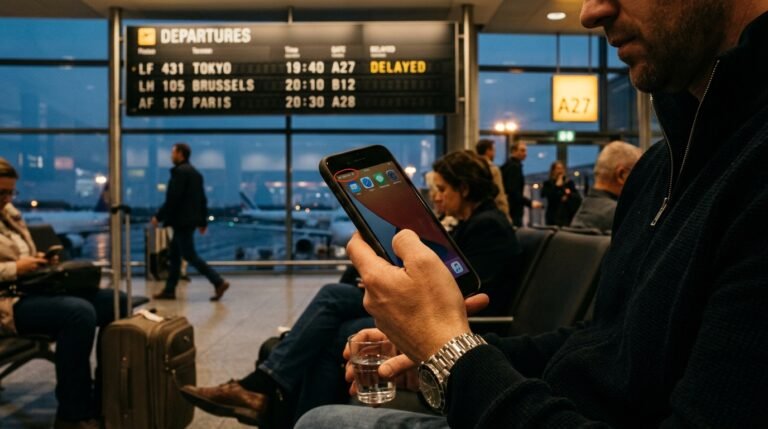
You want one thing after a long flight to Cancún: your phone online before you reach the taxi rank. A travel eSIM makes that possible, but only if you set it up the right way. All iPhone 14 and later models sold in the United States are now eSIM-only, according to Apple’s support documentation, so digital SIMs are already standard for many travelers. This guide walks you through activating an eSIM for Mexico from start to finish. You’ll learn what to do at home before departure, the exact settings for iPhone, Pixel, and Samsung, and how to get connected the moment you touch down. For the bigger picture on staying connected in Mexico, our country guide covers your options.
Key takeaways
- Install your eSIM at home over WiFi before departure, because downloading a profile needs an internet connection.
- Confirm your phone is eSIM-capable and unlocked first (Pixel 4+ and iPhone 13+ qualify, per Google and Apple).
- On landing, set the travel eSIM as your data line and enable Data Roaming only if your plan needs it.
- Seeing No Service? Toggle Airplane Mode for about 15 seconds, then restart.
What should you do before leaving home?
Before you fly, install your eSIM while connected to home WiFi and confirm your phone qualifies. Downloading an eSIM profile needs an internet connection, according to Apple, Google, and Samsung support pages. Setting it up in advance means you arrive in Mexico ready to switch your data on.
Is your phone eSIM-capable and unlocked?
Two conditions matter: your phone must support eSIM, and it must be carrier-unlocked to accept a third-party travel plan. Apple supports Dual eSIM on iPhone 13 and later, and notes that iPhone 17 models sold in Mexico, the US, Canada, Japan, and several Gulf states are eSIM-only. On Android, Pixel 4 and newer support eSIM, and you’ll generally need Android 11 or higher, according to Google. Other Android phones vary by model, carrier, and region. If you’re unsure, check if your phone supports eSIM before you buy a plan.
Why install on WiFi before you fly?
Downloading an eSIM profile requires an internet connection, so a stable home WiFi network is the easiest place to do it, according to Apple, Google, and Samsung. Apple also confirms you can buy a prepaid travel plan from a carrier before you travel. Installing at home means the profile is already on your phone when you land, leaving only a quick switch to make on arrival. If you’d like a walkthrough that isn’t specific to Mexico, see our general eSIM installation guide.
How do you install the eSIM on your phone?
Installing an eSIM takes a few taps in your phone’s settings while you’re on WiFi. The exact path differs by brand, but every method offers QR scanning plus manual entry, according to Apple, Google, and Samsung. Have your QR code or activation details ready before you begin.

iPhone
On iPhone, the steps are quick once you’re connected to WiFi:
- Open Settings > Cellular.
- Tap Set Up Cellular or Add eSIM.
- Choose a method: scan the QR code, use Carrier Activation, use Quick Transfer, or select Enter Details Manually under Settings > Cellular > Add Cellular Plan.
- Follow the prompts to label the line and finish.
On iOS 17.4 and later, you can also tap and hold a QR code image in Mail or Safari and choose Add eSIM, according to Apple’s activation guide.
Android and Pixel
Pixel and most modern Android phones follow a similar path:
- Connect to WiFi (Android 11 or later is required).
- Open Settings > Network & internet > SIMs.
- Tap Add SIM, then Set up an eSIM.
- Scan the QR code and follow the prompts, according to Google Pixel Help.
Samsung Galaxy
Galaxy phones keep eSIM options in the SIM manager:
- Make sure you’re on WiFi or mobile data first.
- Open Settings > Connections > SIM manager.
- Tap Add eSIM, then scan the QR code, auto-download, or enter details manually.
- Confirm and label the line.
You’ll find your EID under Settings > About phone > Status or printed on the phone’s box, according to Samsung UK support.
How do you get online after landing in Mexico?
Once you land, set the travel eSIM as your data line and, if your plan needs it, turn on Data Roaming. Newer iPhones may show a “Turn On Travel eSIM” notification you can tap, according to Apple. Free airport WiFi helps you finish any final steps.
Set the travel eSIM as your data line
On iPhone, open Settings > Cellular > Cellular Data and choose your travel line. On newer models, Apple says you may see a “Turn On Travel eSIM” notification when you arrive; tap it to activate. On Android and Pixel, your phone uses whichever SIM you set for mobile data under Settings > Network & internet > SIMs. Picking the right line is the single most important step, because your other SIM might otherwise grab the connection.
Enable Data Roaming when your plan needs it
Data Roaming lets your phone use the internet on a network your own carrier doesn’t own, according to Apple. On iPhone, go to Settings > Cellular, tap the travel line, open Cellular Data Options, and turn on Data Roaming. On Android and Pixel, enable Roaming under Settings > Network & internet > SIMs, according to Google.
Here’s a detail many travelers miss: a dedicated travel eSIM often works the moment you select it as your data line, without toggling Data Roaming at all, according to Apple. Behavior depends on the plan, so if data doesn’t appear, try both settings. To understand which operator you’ll actually connect to, read up on Mexico’s mobile networks.
Use airport WiFi or select a network by hand
Major arrival airports, including Cancún (CUN), Mexico City (MEX and AIFA), Los Cabos (SJD), and Guadalajara (GDL), generally offer free WiFi through a captive-portal sign-in with time limits. Details vary by terminal, so verify on arrival. Airport WiFi is handy for finishing activation if you skipped a step at home. If your eSIM shows no signal, Android and Pixel let you pick an operator manually under the Network setting, according to Google.
How do you fix common eSIM problems in Mexico?
Most eSIM issues clear up in minutes. For No Service, Apple recommends toggling Airplane Mode for about 15 seconds, then restarting your phone. If a QR code won’t scan, switch to manual entry or a carrier app. Always confirm the right line is selected for data.
No Service, Searching, or SOS
Try these steps in order, based on Apple’s guidance:
- Toggle Airplane Mode on for about 15 seconds, then off.
- Restart your phone.
- On Dual SIM, confirm the line is on: Settings > Cellular, tap the line, then Turn On This Line.
- Check for a carrier settings update at Settings > General > About (this needs WiFi).
- If the problem continues, contact your carrier.
You can’t scan the QR code
If the camera won’t read your QR code, you don’t actually need it. Apple recommends alternate methods: accept a Carrier Activation notification, enter the activation details manually, or use your carrier’s app. The same fallback works across brands, so reach for manual entry whenever scanning fails. Keep your activation details from the confirmation email close, since manual setup asks for them.
No data after arrival
If you have signal but no internet, two settings usually explain it. First, confirm the travel eSIM is the line selected for cellular data. Second, for standard plans, make sure Data Roaming is on, according to Apple. Still stuck? Work through our eSIM troubleshooting steps for a fuller checklist before you contact support.
Landing in Mexico ready to go
Activating an eSIM in Mexico comes down to preparation. Install the profile at home over WiFi, confirm your phone is eSIM-capable and unlocked, then set the travel line as your data connection once you land. Turn on Data Roaming only if your plan calls for it, and lean on airport WiFi to finish any last steps. If you hit No Service, a quick Airplane Mode toggle and a restart fix most cases. Do that, and you can walk out of Cancún, Mexico City, or Los Cabos already online. When you’re ready to choose coverage, compare a Mexico eSIM plan built for travelers before you fly.
Frequently asked questions
Can I set up my Mexico eSIM before I leave home?
Yes, and it's the recommended approach. Downloading an eSIM profile needs an internet connection, so install it over your home WiFi before you depart, according to Apple, Google, and Samsung. Apple also notes you can buy a prepaid travel plan before you travel, then activate your data once you arrive.
Do I need to turn on Data Roaming for a travel eSIM?
It depends on your plan. For standard plans, Apple says Data Roaming must be turned on to use the internet abroad. For a dedicated travel eSIM, you often just select it as your data line instead. If data won't work, check both settings on the travel line.
Which phones can use an eSIM in Mexico?
Your phone must be eSIM-capable and carrier-unlocked. Apple supports Dual eSIM on iPhone 13 and later, and Pixel 4 and newer run eSIM on Android 11 or higher, according to Google. Other Android models vary by carrier and region, so verify your exact model before buying a plan.
What should I do if I have no signal after landing?
First, toggle Airplane Mode for about 15 seconds, then restart your phone, as Apple recommends. Confirm the travel line is switched on and selected for cellular data. On Android and Pixel, you can also pick an operator by hand under the Network setting, according to Google.
Will free WiFi be available at Mexican airports?
Major Mexican airports, including Cancún (CUN), Mexico City (MEX and AIFA), Los Cabos (SJD), and Guadalajara (GDL), generally offer free WiFi through a captive-portal sign-in with time limits. The details vary by terminal, so verify on arrival. It's handy for finishing any last activation steps.
Was this article helpful?
Thanks for your feedback!